
For Meta Quest 3
Scan real objects into your game.
Put on your headset, walk around something you own, and take home a textured 3D model for your game. If you have never scanned anything before, the app shows you what to do at each step.
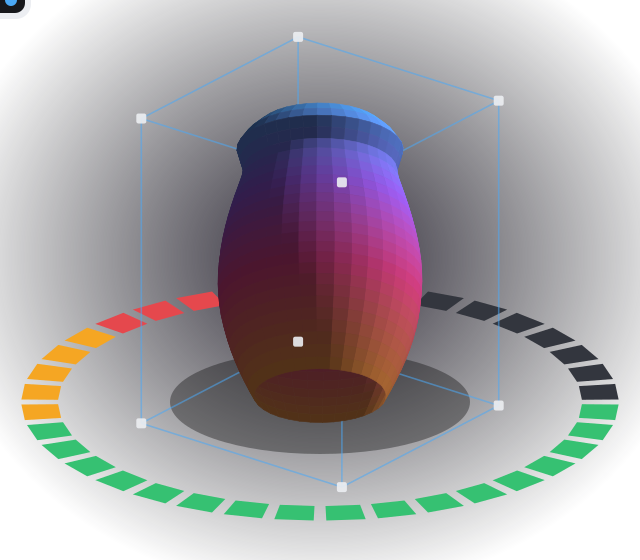
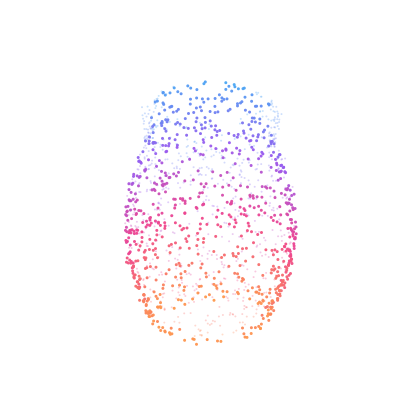
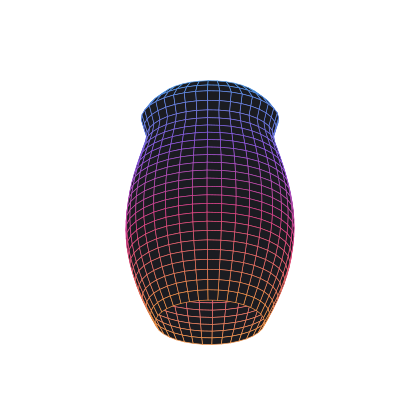
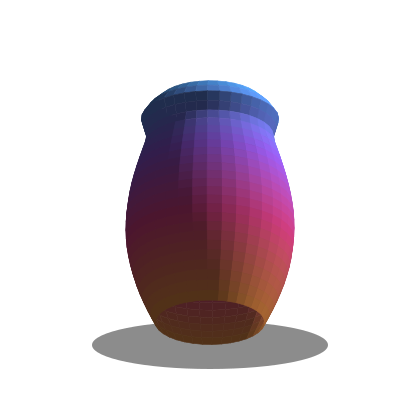
Your first asset, in five steps
Made for first-time scanners. The app leads you through each step. To see the walk-through again, turn Guide off and on in the model bar.
-
Put a box around it
Set your object somewhere you can walk around it. Drag the box over it, then pull the sides to fit. Only what is inside the box goes into your model.
-
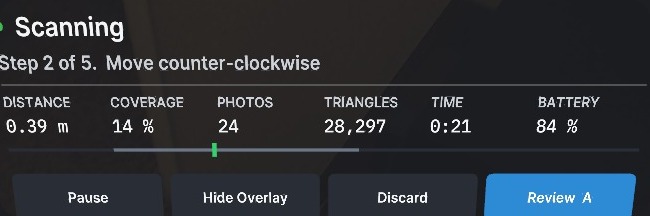
Walk around it
The object paints itself as you go: red, then orange, then green. Green means it is covered. There is nothing to work out. Just turn the red parts green.
-
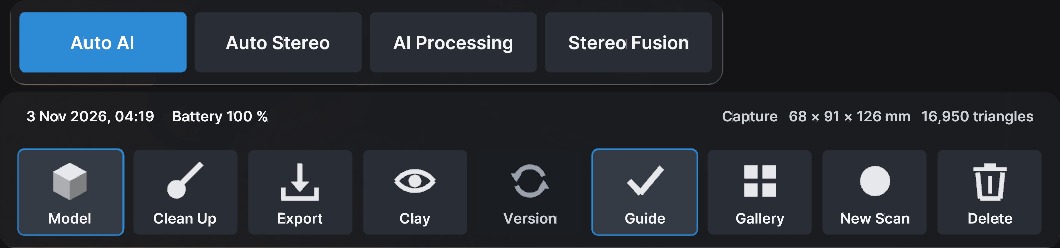
Press Auto AI
When you finish, Model opens by itself. Auto AI builds the model, removes floating bits, closes it into a solid and wraps the texture. A little chime tells you when it is done, then you approve the result. Auto Stereo does the same from measured depth only. If you would rather work step by step, AI Processing and Stereo Fusion are right beside them.
-
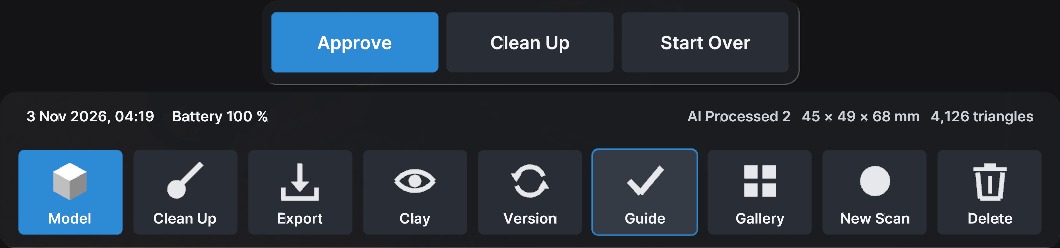
Approve it, or clean it up
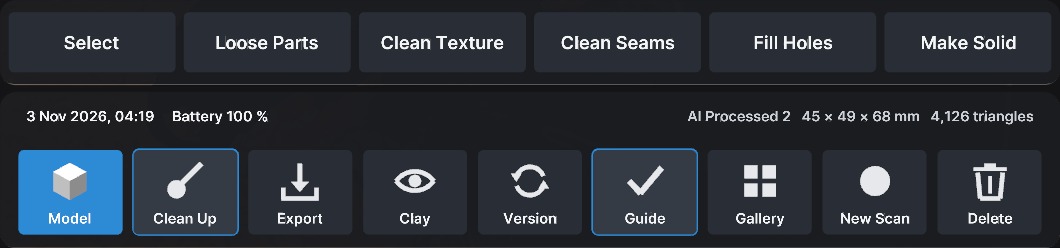
Happy with it? Press Approve. Otherwise Clean Up holds every tool in one pop-out: remove stray bits, tidy the texture and level out the seams. Clean Texture, Clean Seams, Fill Holes and Make Solid each save a new version, so you can go back.
-
Export to your game
Choose what it is for: Roblox, a mobile game or full quality. Press Export and your files land in Download/HMScan on the headset, in a folder for each scan. Connect a data USB-C cable, choose Allow in the headset, and copy them to your computer. On a Mac you need an Android file transfer app.
Clean-up tools, in plain words
Clean Texture, Clean Seams, Fill Holes and Make Solid each took about five seconds on the headset in our test.
- Select
- Mark the parts you want. Erase the rest. Works before AI Processing too.
- Loose Parts
- Removes floating bits that are not attached to your object.
- Clean Texture
- Rebuilds the colour map from the original photos.
- Clean Seams
- Evens out the colour where photos meet, so joins are harder to see.
- Fill Holes
- Closes gaps in the surface. Open edges can stay, so use Make Solid for a fully closed shape.
- Make Solid
- Builds a closed, watertight shape from the scan, for when you need one.
What you get
- GLB and OBJ with the colour texture, for game engines and 3D apps. Also PLY, and faceted STEP for CAD.
- Export sizes for games: Roblox (up to 19,500 triangles), Mobile Game (up to 10,000) or Full Quality.
- A baked colour texture up to 4096 × 4096.
- Close to real size, in real units. Measure before you print or fit parts.
- Your versions stay on the headset, so you can switch back. Delete removes a scan and all its versions.
Good to know
- The colour map has your room’s lighting baked in. There are no normal or roughness maps.
- You get a scan, not a hand-built model. Props and objects are the natural fit.
- Fine detail softens, and so far we have tuned it on one object. See the early results below.
- So far we have tested small objects. Dark, shiny or see-through surfaces are hard for any camera.
Early test results
These come from quick testing on a Quest 3, scanning one drink can about 66 mm wide and 122 mm tall. More thorough testing is coming, and we expect these numbers to change.
- 2 min
- to walk around the object
- 3 min
- for AI processing on the headset
- 5 sec
- for each clean-up tool
- 0.45 mm
- typical surface error in our best scan
- 66 × 69 × 123 mm
- size of the closed model in our best scan
- 3.7 MB
- Roblox export, 19,481 triangles
Results vary. Across our early scans, the closed model’s height ranged from 105 to 123 mm, and gaps in a scan can make it shorter. Your results will depend on the object, the light and how you walk around it.
Questions
Do I need a PC or a phone?
Not for HMScan itself. Scanning, AI Processing, clean-up and export all run on the headset. You need a computer to copy finished files into your project. Setting up a Quest needs Meta’s phone app and a Meta account, as it does for any Quest app.
Does it work with Roblox?
Yes, for props and objects. Choose Roblox on the Export page to keep a model under Roblox’s 20,000-triangle limit, then import the GLB in Roblox Studio with Scale Unit set to Meter.
Do my scans get uploaded?
No. HMScan does not upload your scans or photos, and there is no HoneyMotion account. Your scans stay on your headset until you copy them off. Read the privacy policy.
Which headsets work?
HMScan is tested on Meta Quest 3. Quest 3S is not tested yet.
Can I take the headset off during AI Processing?
Yes, but it stops working while the headset is off, because the system pauses apps. It carries on when you put it back on. If the app gets closed, the job starts again next time you open HMScan. Your scan is kept.
Can I use the scans in a commercial game?
HoneyMotion claims no rights in your scans. Whether you can use one commercially depends on what you scanned: logos, characters, other people’s designs and people’s likenesses can be protected. Check first.
Can I scan people or faces?
Not reliably yet. HMScan is built for objects that stay still, and we have not tested it on people. Only scan someone who has agreed.
When can I get it?
HMScan is coming soon to the Meta Horizon Store, for ages 13 and up.